
What to look for when Choosing the Perfect Computer and Accessories for Your Needs
- Chebet Kosgey
- Apr 28
- 3 min read

Updated: May 14
Finding the right computer and accessories can feel overwhelming with so many options available. Whether you want a desktop for work, a gaming PC for entertainment, or reliable accessories like printers and UPS systems, making the right choice matters. This guide breaks down everything you need to know to pick the best setup tailored to your needs, including upgrades and troubleshooting tips.

Affordable laptops
Understanding Your Computing Needs
Before buying, clarify what you want your computer to do. Different tasks require different hardware and accessories.
Basic Use: Browsing, emails, and document editing need modest specs.
Gaming: Requires powerful graphics cards, fast processors, and high RAM.
Professional Work: Video editing, 3D modeling, or programming demand high-performance CPUs, large SSDs, and sometimes servers.
Home Office: A reliable desktop with printer and UPS backup ensures smooth workflow.
Security: CCTV installation and monitoring might need specialized hardware and software.
Knowing your primary use helps narrow down choices and avoid overspending on unnecessary features.
Choosing the Right Desktop or Gaming PC
Desktop Computers
Desktops offer flexibility and upgrade options. Look for:
Processor (CPU): Intel Core i5 or AMD Ryzen 5 are solid mid-range choices.
Memory (RAM): Minimum 8GB for smooth multitasking; 16GB or more for heavy use.
Storage: SSDs provide faster boot and load times than traditional HDDs.
Graphics Card: Integrated graphics suffice for basic tasks; dedicated GPUs are needed for gaming or design.
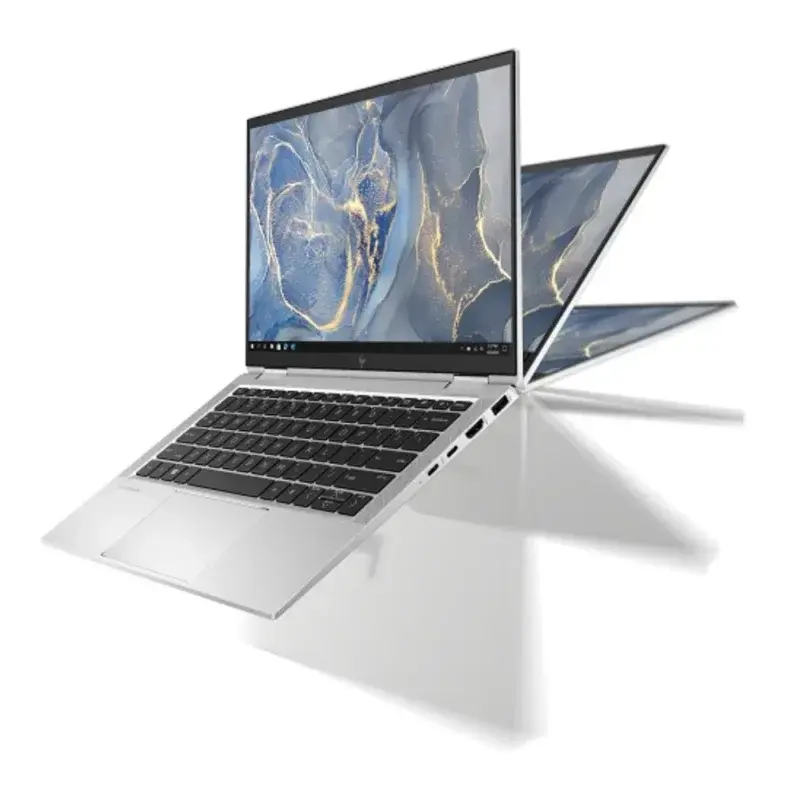
Powerful and affordable laptops
Gaming PCs
Gaming demands higher specs:
High-end GPU: Nvidia RTX or AMD Radeon series.
Fast RAM: 16GB or more with high speed.
Cooling System: Proper ventilation or liquid cooling to prevent overheating.
Monitor Compatibility: Ensure your monitor supports high refresh rates and resolutions.
Essential Accessories to Enhance Your Setup
Printers
Choose based on your printing needs:
Inkjet: Good for photos and color prints.
Laser: Faster and cost-effective for text-heavy documents.
All-in-One: Combines printing, scanning, and copying.

High performance printers on a budget for both home and office use.
UPS (Uninterruptible Power Supply)
Protect your devices from power outages and surges:
Capacity: Match UPS wattage to your computer and accessories.
Backup Time: Longer battery life gives more time to save work.
Additional Features: Surge protection and automatic voltage regulation.

Do not allow power surge stop you from working.
Servers
For businesses or advanced users needing file sharing, backups, or hosting:
Storage Capacity: Depends on data volume.
Processing Power: Should handle multiple users or applications.
Security Features: Encryption and access controls.
Upgrading Your Computer: RAM and SSD
Upgrades can extend your computer’s life and improve performance without buying new hardware.
RAM Upgrade: Adding more RAM helps with multitasking and running demanding applications.
SSD Upgrade: Replacing an HDD with an SSD speeds up boot times and file access.
Check compatibility with your system before purchasing upgrades. Many shops offer installation services to ensure proper setup.
Repair and Troubleshooting Services
Even the best hardware can face issues. Common problems include slow performance, hardware failures, or connectivity issues.
Diagnostics: Professionals can identify the root cause quickly.
Repairs: From replacing faulty parts to fixing software errors.
Maintenance: Regular cleaning and updates prevent future problems.
Having access to reliable repair services saves time and money.
CCTV Installation for Security
Installing CCTV cameras enhances safety at home or business.
Camera Types: Wired or wireless options depending on location.
Resolution: Higher resolution provides clearer images.
Storage: Cloud or local storage for recorded footage.
Integration: Connect with your computer or mobile devices for remote monitoring.
Professional installation ensures cameras cover key areas and function correctly.

Tips for Buying from a Computer Shop
Ask Questions: Clarify specs, warranty, and return policies.
Test Equipment: If possible, try devices before buying.
Look for Bundles: Some shops offer discounts on combined purchases like PC plus printer.
Check Reviews: Reliable shops have positive customer feedback.
Consider After-Sales Support: Repair and upgrade services add value.
Final Thoughts on Choosing Your Computer and Accessories
Choosing the right computer and accessories depends on your specific needs and budget. Focus on what tasks you want to accomplish, then select hardware and peripherals that support those goals. Upgrading RAM or SSD can boost performance without a full replacement. Don’t overlook the importance of accessories like printers, UPS, and security cameras to complete your setup.


Comments